Free Notion Template for Students
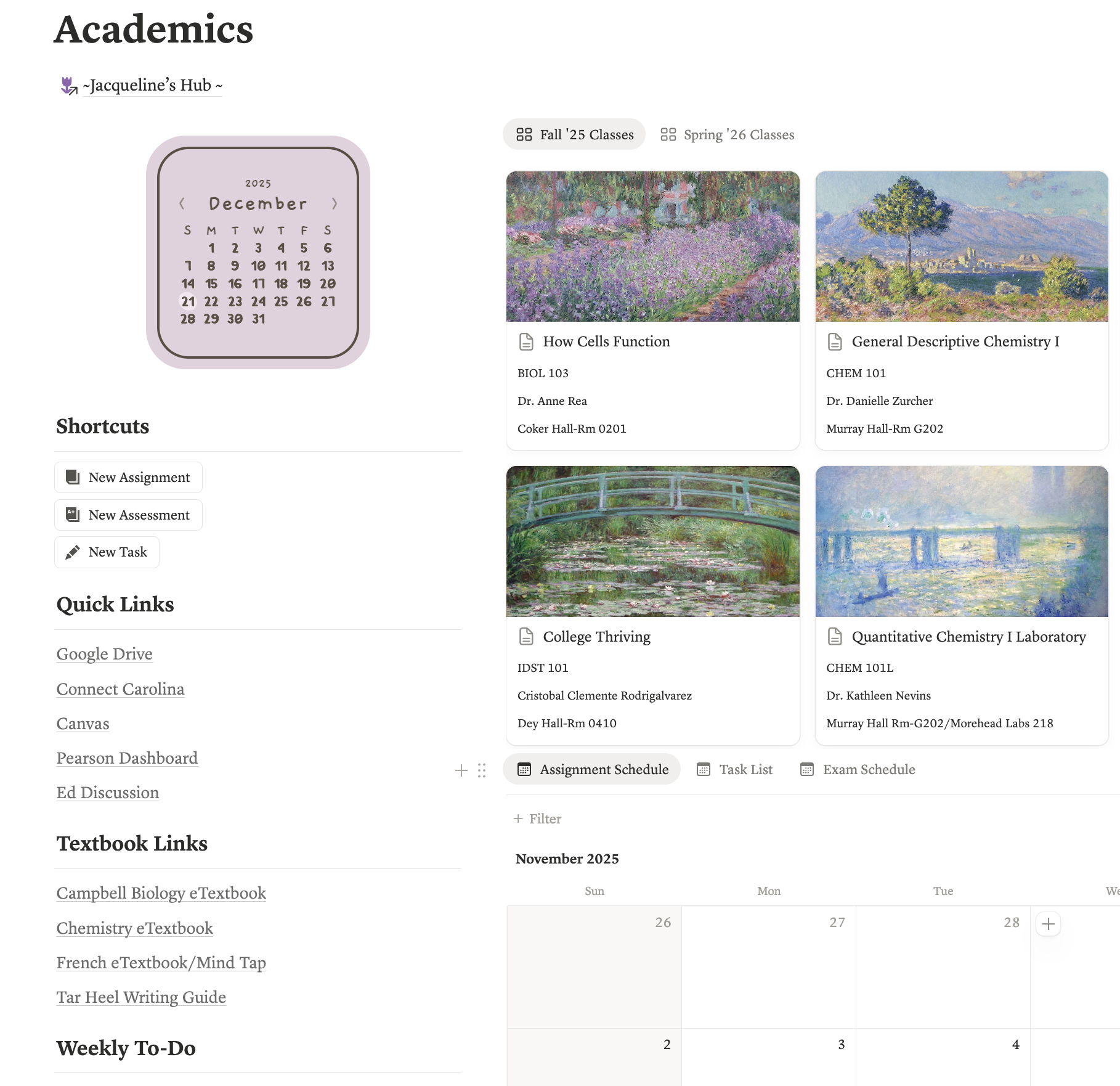
Have you ever seen those gorgeous Notion dashboards on your feed and think to yourself “Wow! I want to make that too!” and then you make it and discover you have no idea how anything works. Have your ever been overwhelmed on how you should be using Notion for school? That was me too when I first started using Notion, however, after watching many tutorial videos I finally curated a dashboard that fit me. Let me give you a tour of my Notion and provide you a free Notion template for students!
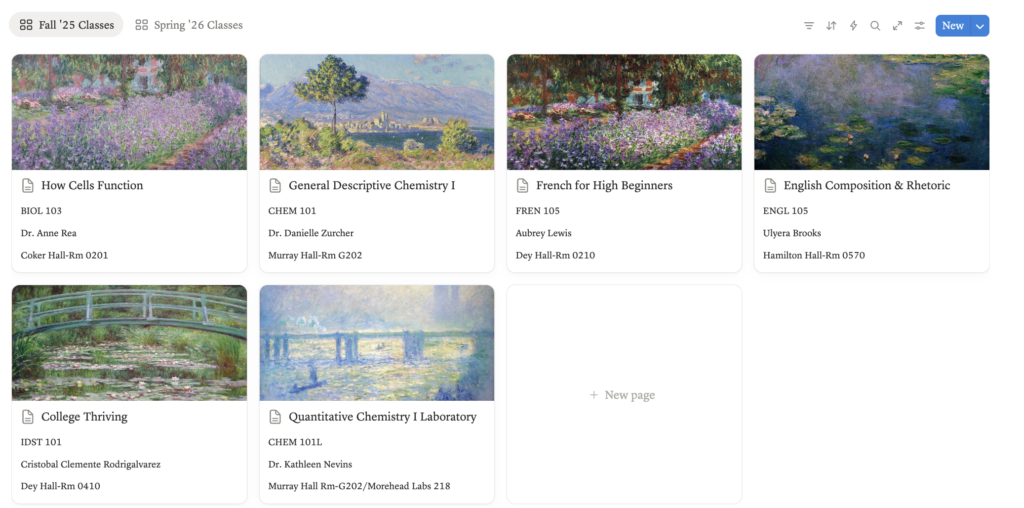
1. Course Database
Every student’s Notion should include a database that lists your classes for the semester/year. For each class I have the professor, course code, time and date, and then location listed as properties. You can have fun with this database by adding pictures for each class (known as covers) and making your Notion all aesthetic!
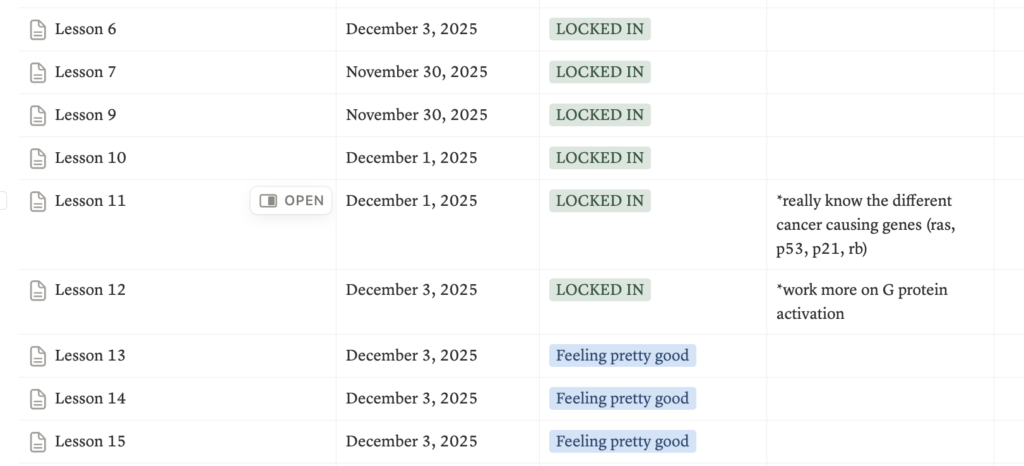
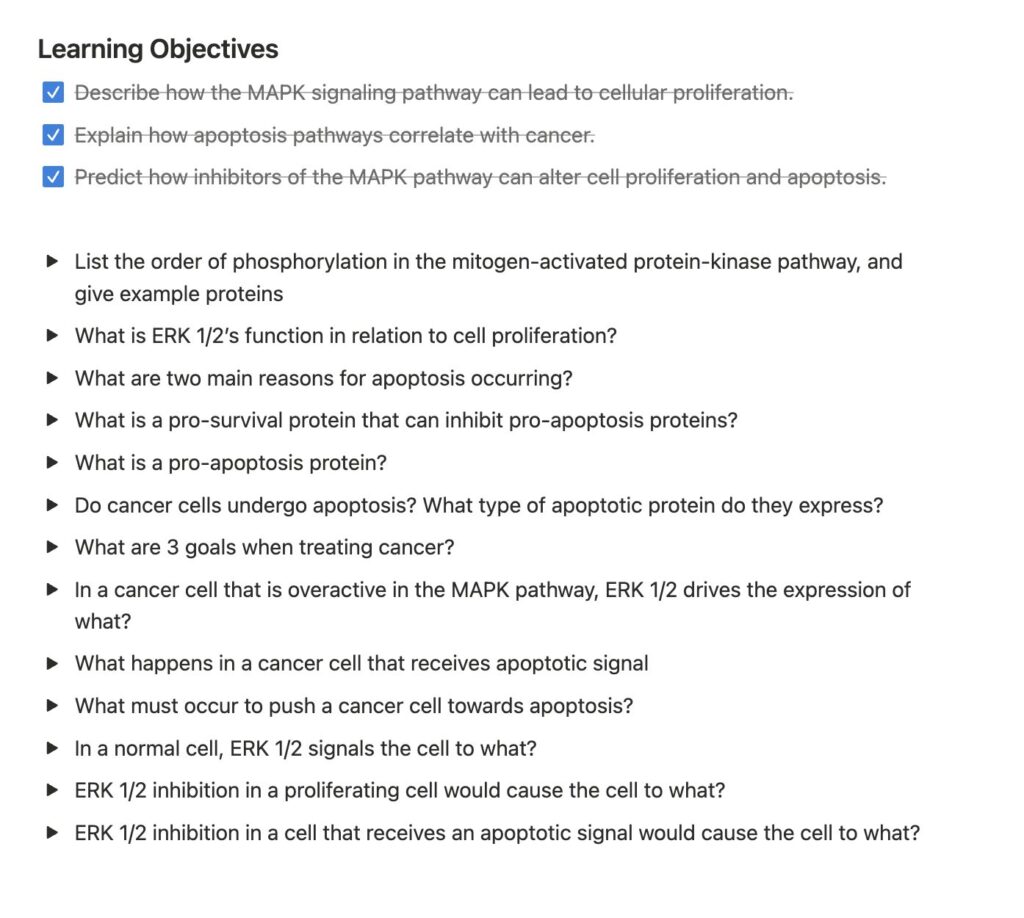
2. Lesson Notes Database
For notes heavy classes, I always have a database that organizes lessons and notes I’ve taken for those lessons. Within this databse I have it organized to where I can view the lesson, the date I last reviewed the notes, and my understanding of the content. This allows me to prioritize lessons that I haven’t reviewed in a while and lessons I don’t completely understand. Within these pages, I have the learning objecties of the lesson and questions that initiate active recall to help me study and review content. With the toggle feature Notion has I am able to read the question and then check for the answer.
These lesson notes can be found in the course page. For example, the BIOL 103 notes is found in the Biology course page from the course database.
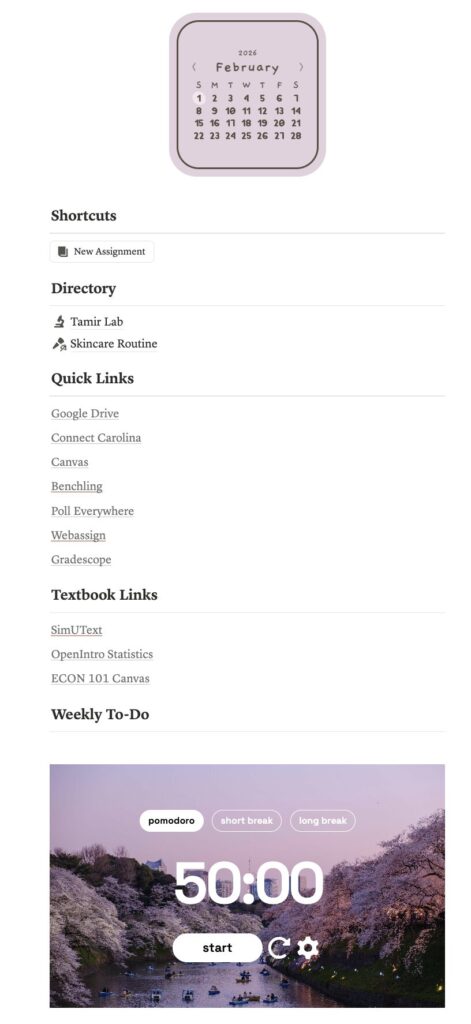
3. Side Space for All those Easy Access Links!
On the left side of my Notion I have a section dedicated to links I need easy access to. These include Canvas, my school’s portal, google drive, and textbook links. Additionally, I have a weekly to-do list so I don’t have to keep writing down the same tasks over and over. Finally, I have “shortcuts” which are buttons that allow me to easily create new assignments whenever a professor assigns a short reading.
4. Assignment Tracker
Finally, that’s essential for your Notion as a student is an assignment tracker. For this tracker, I use both a calendar and list view. The calendar view helps me see the organized tasks by due date, and the list view helps me look at overall tasks. If you want to learn how to make these be sure to read this article! In the tracker I have it organized so I can see…
Finally, the last essential piece you need on your academic dashboard is an assignment tracker. If your classes flood you with assignments like mine do, it’s hard to keep track of everything without writing it down somewhere. Notion allows me to set the due dates for my assignments, organize which class it’s for, and update the status of the assignment. Of course, you all have to do this manually, however, I find it helpful to begin your week by writing down which assignments you need to complete. It helps me know what I have to do, plan for the week, and I won’t be blindsided by some random assignment.
- assignment title
- course it belongs to
- days left to complete
- due date
- priority (low, medium, high!!!)
- status
- any notes regarding the assignment


Notion Template for Students
If you’re interested in incoporating all of these into your dashboard, but don’t know how, look no further! You can utilize this template as your starting point to your Notion journey! This template was created by me and mimics what my actual academic dashboard looks like. If you’re interested in seeing what my dashboard looks like in full, free to view it here! Good luck creating!
Blank Template
Claude Monet Inspired Template
And finally, those are my 3 essential items to have on your Notion for school. Of course you can add more, for example, my dashboard includes a widget for a pomodoro timer, however, these are just the items that I would find myself lost without. Above all, have fun, be creative, and be aesthetic with your dashboard! Find what works for you! I hope this helps!
Until next time,
Jacqueline